Before you begin
You do not need an account to try an open quiz. If you have an account, sign in first so that your results are kept with it. Use a device with a steady connection, and set aside the full time shown on the quiz, because the clock starts as soon as the paper opens.
Find a quiz
- Open the quiz list. Without an account, open Quizzes → Open Quizzes in the menu. The page says You can attempt these quizzes even before registration. After you sign in, Your Quizzes lists the quizzes available to you, grouped as Available now, Upcoming and Expired. Open Quizzes stays in the same menu. On a phone, open the menu first.
- Narrow the list. Pick a group on the left, such as A/L, O/L, Grade 6-10 or Grade 5 Scholarship, then Past Papers or Model Papers. You can also type a title, subject or grade in the search box. Choose Clear Filters to start again.
- Read the quiz card. Each card shows the number of questions and the time allowed in minutes. A badge shows Free, or the coins the quiz needs, or Unlocked with the attempts you have left. In Your Quizzes, the card also shows how many attempts the quiz allows. A badge shows whether the quiz is Open, Upcoming or Expired. A quiz that has been switched off shows Deactivated or Not open for attempts instead of an Attempt button.
- Select Attempt. This opens the quiz page. Read Quiz Description to check the number of questions, the duration and when results appear. Select View full quiz details to see the attempts allowed and the opening and closing dates.
Some quizzes need coins to unlock. The quiz page then shows Unlock to start instead of Start Quiz. See the coins page for how coins work.
Start and answer the quiz
- Select Start Quiz. The page shows Preparing your quiz… while it opens the paper. Press the button once. If you are asked to complete a check first, finish it and select the button again. If the quiz asks for a photo, allow your camera when the browser asks, then select Capture Photo & Start Quiz.
- Check the timer. The time left counts down on the quiz screen. It started when the paper opened, and it keeps running even if you close the page.
- Answer each question. Choose an answer, or type it where the question asks for text. Questions can be single choice, multiple choice, true or false, short or long answers, matching columns or putting items in order. Select Clear to remove your answer to the current question.
- Move between questions. Select Save & Next to save your answer and go on. Select Back to return to an earlier question. You can also select a number in the question list to jump to it. On a small screen, select Pallet to show the list. The colours in the list show each question as Answered, UnAnswered, Review-Later (RL) or Not-visited.
- Mark questions to come back to. Select RL to mark the current question for review later. Its number takes the Review-Later (RL) colour. Return to it before you submit.
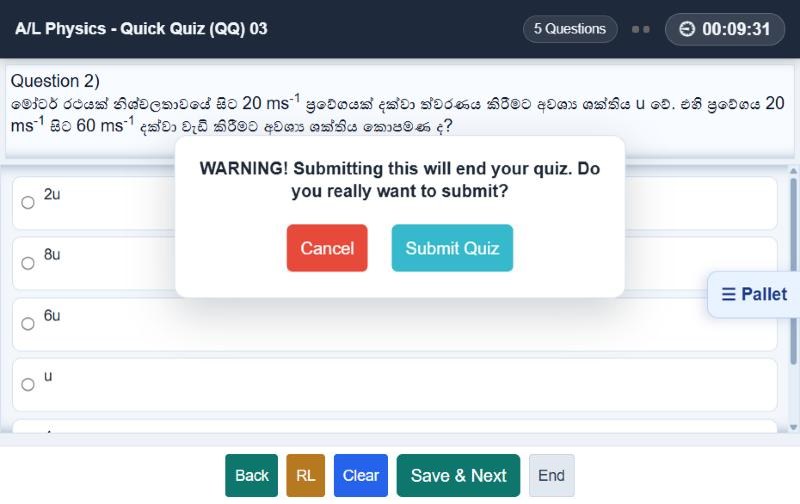
- Select Submit Quiz. On some quiz layouts the button at the bottom is called End. A warning asks whether you really want to submit, because submitting ends your quiz. Select Cancel to keep going, or Submit Quiz to finish.
When time runs out
When the time is over, the page shows a Time Over alert and submits the quiz for you. Only the answers that were already saved count, so do not leave answering to the last second. Your result opens with the message Time over and quiz submitted successfully. The same happens if you return to an unfinished quiz after the time has passed.
See your result
After you submit, the result page opens. It shows your percentage and score, and counts of correct, incorrect and unattempted questions. Some quizzes also show your rank among others who sat the quiz, and a certificate. What appears depends on the quiz.
If the quiz allows it, signed-in students also get an Answer Sheet that shows each question, your answer and the correct options. A question that needs marking by hand shows as pending review until it has been marked. To find an earlier result, open Results from the shortcuts under the page title.
If you are not signed in
Without an account, ETEST gives your attempt a temporary guest identity. You can answer and submit as normal. Your result page shows your score, and some quizzes also show one question you got wrong. The rest of the answer review, progress over time and class comparison stay locked until you have an account.
To keep the result, select Save this result to your account on the result page, then choose Continue with Google where it appears or Sign up with email. If you already have an account, select Log in and claim it. After you sign up or sign in, the attempt moves to your account. Do this before you close the tab: the page warns that the result lives in your browser session only.